
We have program generated raster data. Some of the pixels need transparency and for the rest of the pixels, we’d like to show the same color throughout the entire “cell”/“pixel”. We originally were using NativeImageRasterLayer and the transparency & colors display fine but it was interpolating between pixel centers which is undesired. I have tried switching to WpfRasterLayer but there I’m getting both interpolation and weird drawing issue near the edges of transparent areas. Any ideas on how to display these type of rasters?
Issues with drawing custom rasters
Hi Robert,
This sounds like a classic case of Categorical Data rendering. The artifacts and blurring you are seeing are caused by standard Bilinear or Bicubic interpolation, which blends neighboring pixels together. In the case of transparency, interpolating between an opaque color and a transparent pixel (Alpha 0) often creates a “dirty” or “fuzzy” fringe at the edges.
- If you are using SkiaGeoCanvas to draw the layers, you can do
// disable the antialias
SkiaGeoCanvas.RenderingOptions.ImageAntiAlias  = false;

// also you can play with SKFilterMode.Linear  see which one fits your scenario better
SkiaGeoCanvas.RenderingOptions.ImageSamplingOptions = new SKSamplingOptions(SKFilterMode.Nearest, SKMipmapMode.None)
- If you are using LayerOverlay to draw, sorry the properties are not available, and we can make it available in about a week. In fact, it could just work if you upgrade to the latest beta, and a:
layer.RasterContentTypeProvider = l => RasterContentType.Categorical;
and b:
layerOverlay.DrawingQuality = DrawingQuality.Dynamic
This will trick the rendering engine to disable the image antialias, and use Nearest instead of Mitchell for resampling. Check out here for the detail: ThinkGeo Raster Sampling Logic & Behavior Matrix - ThinkGeo Docs (v15 in the doc also works with v14.5.0-beta092+).
The above APIs are only available in the latest beta branch (v14.5.0-beta092+)
Thanks,
Ben
Thanks for the quick reply Ben. I greatly appreciate it.
I pulled in the v14.5.0-beta092. Here is my layerOverlay initialization code:
                // create the object layers
            _objectOverlay = new LayerOverlay();
            _objectOverlay.Name = DataMapHelper.ObjectsOverlayName;
            _objectOverlay.TileType = TileType.SingleTile;
            _objectOverlay.DrawingQuality = DrawingQuality.Dynamic;
            _mapView.Overlays.Add(VestaDataMapHelper.ObjectsOverlayName, _objectOverlay);
Here’s my raster layer creation:
            // Create the raster image
        var (imagePath, extent) = GridRasterBuilder.CreateGridRaster(
            grid: grid,
            variable: layerVar,
            layerSettings: layerSettings,
            animationModel: _animationModel);

        // Track the temp file for cleanup
        TrackTempRasterFile(layerVar, imagePath);

        // Create WpfRasterLayer with categorical content type so the rendering
        // engine uses nearest-neighbor resampling instead of Mitchell, giving
        // each grid cell a crisp uniform color block.
        var rasterLayer = new WpfRasterLayer(imagePath, extent);
        rasterLayer.RasterContentTypeProvider = layer => RasterContentType.CategoricalRaster;
I’m still getting the same visual issues and it seems to still be interpolating. Is there something I’m doing wrong here?
Can you try something like following see if you can get the image you expected?
	var rasterLayer = new WpfRasterLayer(imagePath, extent);
	rasterLayer.Open();

	// Create a GeoImage as the image to draw on
	var geoImage = new GeoImage(800, 800);
    var bbox = rasterLayer.GetBoundingBox();

	var skiaGeoCanvas = new SkiaGeoCanvas();
	// disable the antialias
	skiaGeoCanvas.RenderingOptions.ImageAntiAlias = false;
	// also you can play with SKFilterMode.Linear  see which one fits your scenario better
	skiaGeoCanvas.RenderingOptions.ImageSamplingOptions = new SKSamplingOptions(SKFilterMode.Nearest, SKMipmapMode.None);

	skiaGeoCanvas.BeginDrawing(geoImage, MapUtil.GetDrawingExtent(bbox, geoImage.Width, geoImage.Height), GeographyUnit.Meter);
    rasterLayer.Draw(skiaGeoCanvas, new Collection<SimpleCandidate>());
    skiaGeoCanvas.EndDrawing();

    geoImage.Save("output.png");
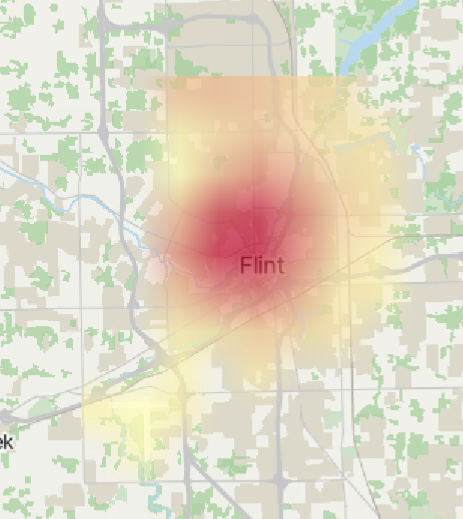
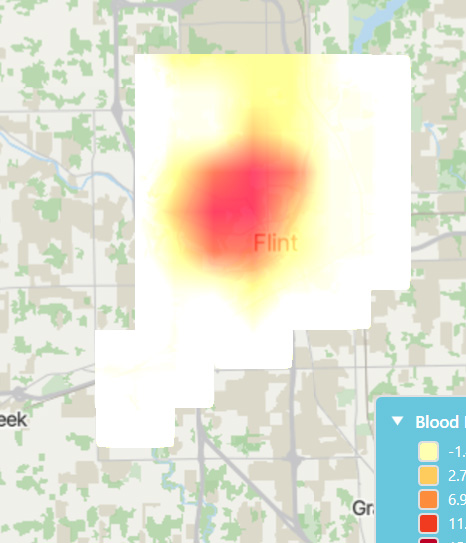
I’m still not getting the right effect. We are creating the rasters in memory so I’m not sure creating these temporary image files is the best approach, but we initially implemented it with NativeImageRaster, but that was deprecated. The NativeImageRaster gave the correct transparency and colors and the only issue was the interpolation. This example is a 9x11 raster.
Here’s the NativeImageRaster screenshot:
Here’s the screenshot from the SkiaCanvas approach, Nearest (with either WpfRasterLayer or SkiaRasterLayer):
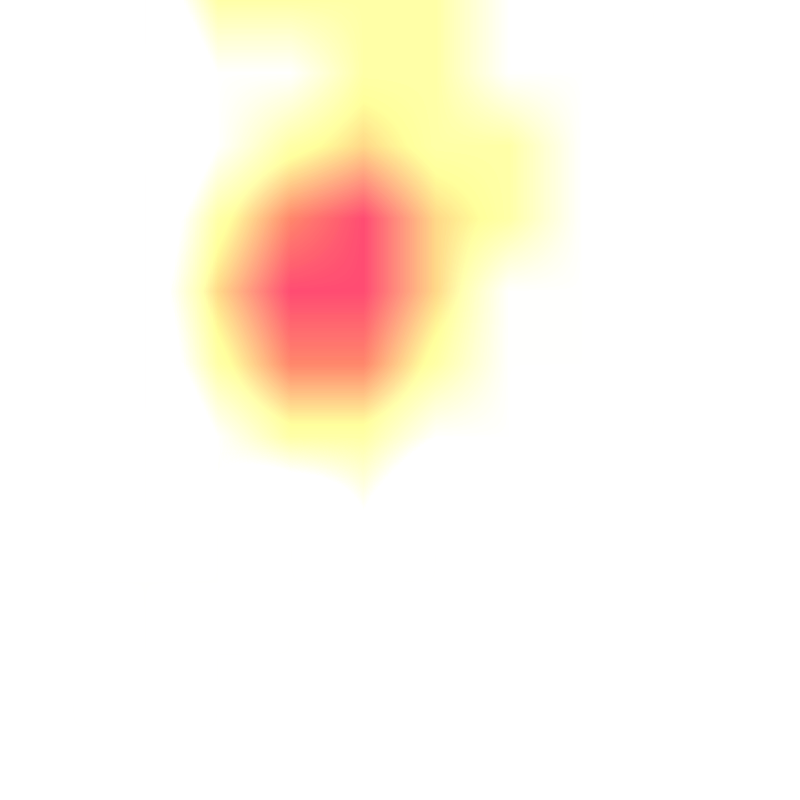
And the output raster:
Here’s the screenshot from the SkiaCanvas approach, Linear:
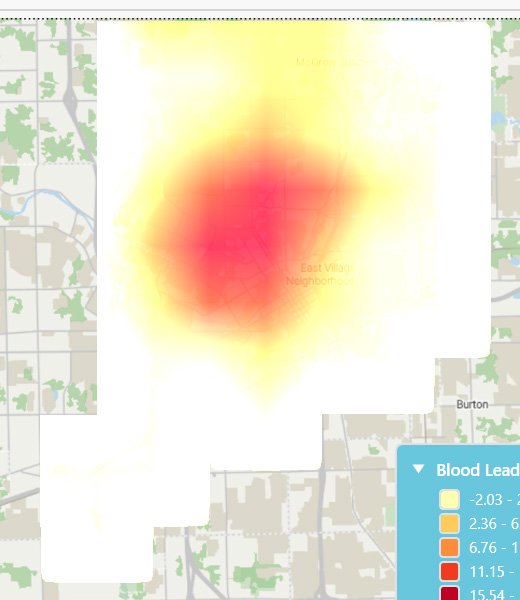
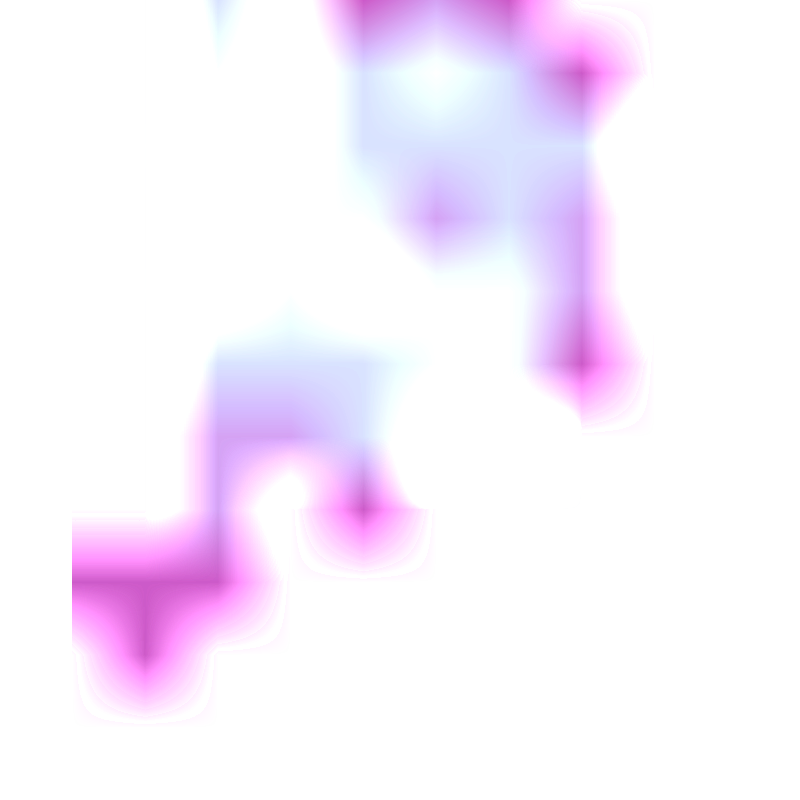
And the output raster (apologies the data is different and the color scheme as well):
Hi Robert,
Here is a demo where we displayed a 9 pixel x 11 pixel image on the map. Post12316Repro.zip (3.9 KB). It’s using the latest beta and it looks like the one on the right.
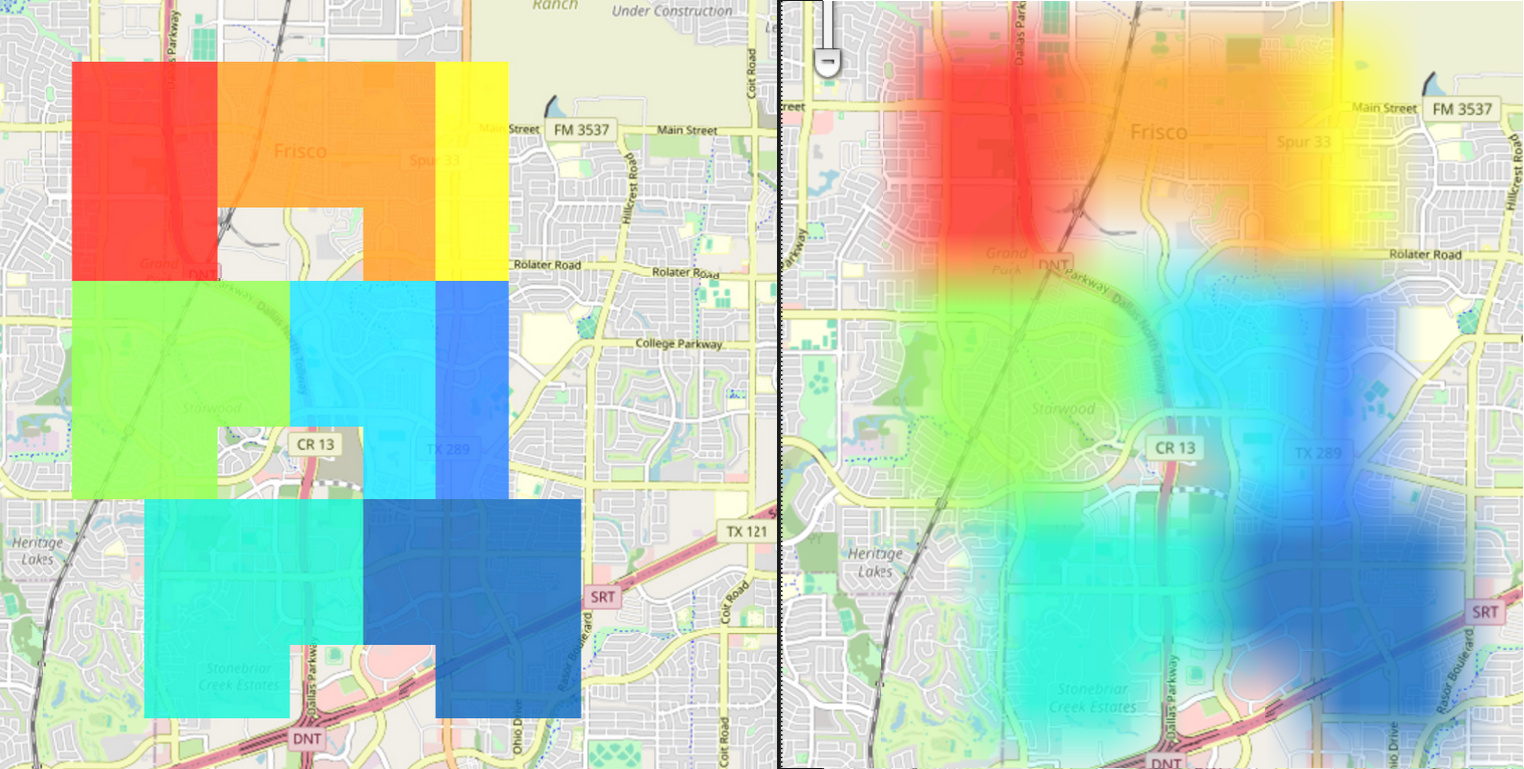
And you are expecting the one on the left, right? We found it’s not doable now as some of the internal APIs are not being exposed. Give us some time and we will work on it.
Thanks,
Ben
Hi Ben,
Thank you for looking into it. Yes, it is the image on the left that we are looking to deliver. Also if there is any way to use in-memory images instead of files that also would be good to have (although we can work around if with temporary files).
Hi Robert, we will keep working on it. Some internal APIs needs to be exposed, and we need to discuss over it. Yes, in-memory image will be supported as well. We will keep you posted.
Hi Robert,
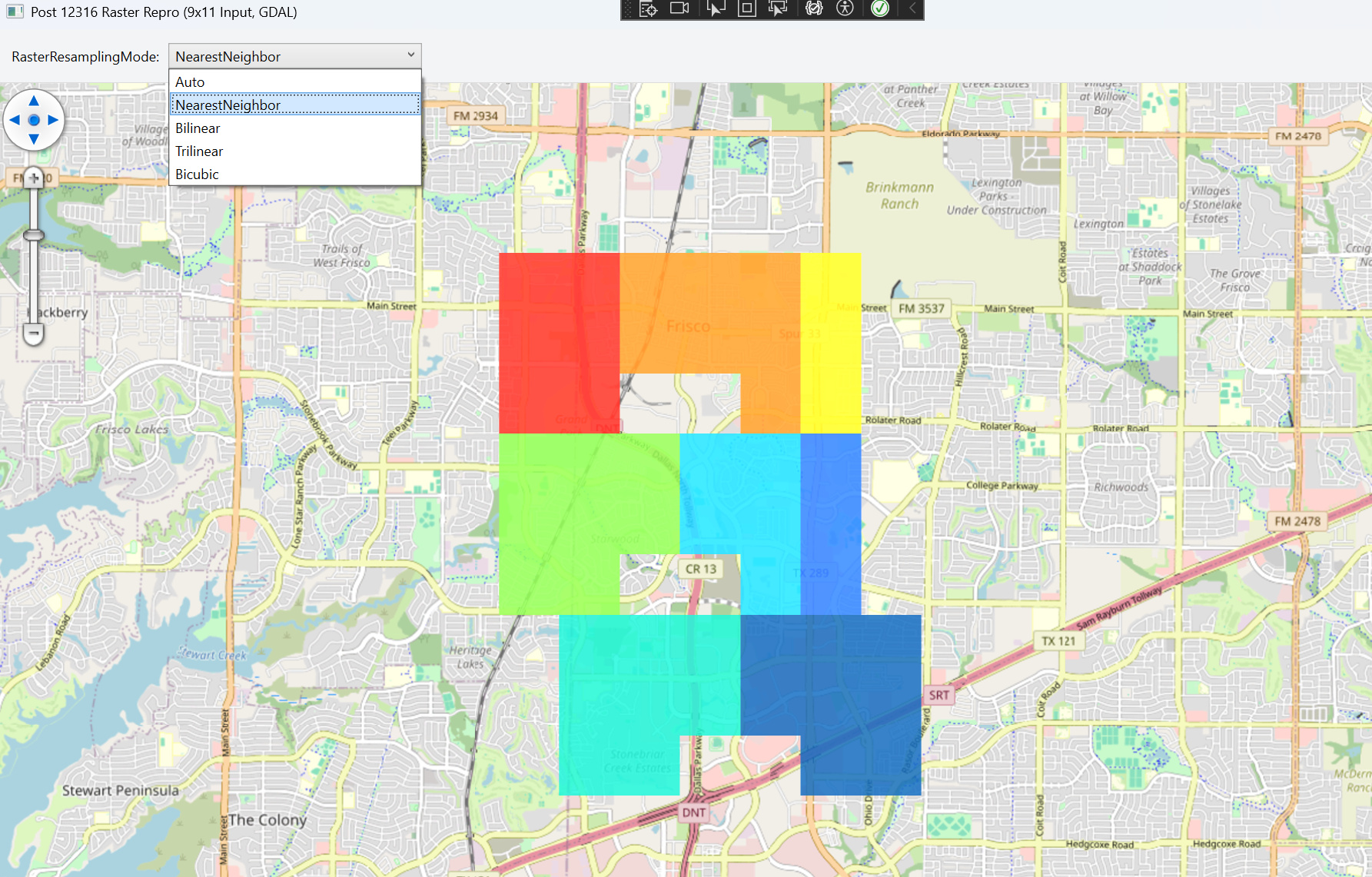
Check out the demo using the latest beta package. Select NearestNeighbor and you can get the image you want.
post12316-resampling.zip (4.9 KB)
Thanks,
Ben
Thank you. I just had the chance to implement it and it works great now!
Please let me know when you implement in-memory images as that would also be a big help.
Thanks,
Robert
Hi Robert,
It’s now supported in the latest version:
- Pull the latest nuget package (beta105)
- Use StreamLoading to get the image in memory stream:
......
skiaRasterLayer = new SkiaRasterLayer("notExist", rasterExtent);
skiaRasterLayer.StreamLoading += SkiaRasterLayer_StreamLoading;
......

private void SkiaRasterLayer_StreamLoading(object? sender, StreamLoadingEventArgs e)
{
    if (e.StreamType == "Image File")
		e.AlternateStream = GenerateRasterInMemory();
}

private static MemoryStream GenerateRasterInMemory()
{
	const int width = 9;
	const int height = 11;
	var pixels = new byte[width * height * 4];

	var pattern = new[]
	{
		".........",
		".112223..",
		".112223..",
		".11..23..",
		".444556..",
		".444556..",
		".44..56..",
		"..777888.",
		"..777888.",
		"..77..88.",
		"........."
	};

	for (var y = 0; y < height; y++)
	{
		for (var x = 0; x < width; x++)
		{
			var symbol = pattern[y][x];
			var color = GetCellColor(symbol);

			var pixelIndex = ((y * width) + x) * 4;
			pixels[pixelIndex] = color.B;
			pixels[pixelIndex + 1] = color.G;
			pixels[pixelIndex + 2] = color.R;
			pixels[pixelIndex + 3] = color.A;
		}
	}

	var bitmap = BitmapSource.Create(width, height, 96, 96, PixelFormats.Bgra32, null, pixels, width * 4);
	var encoder = new PngBitmapEncoder();
	encoder.Frames.Add(BitmapFrame.Create(bitmap));

	var stream = new MemoryStream();
	encoder.Save(stream);

	stream.Position = 0;
	return stream;
}
Thanks,
Ben