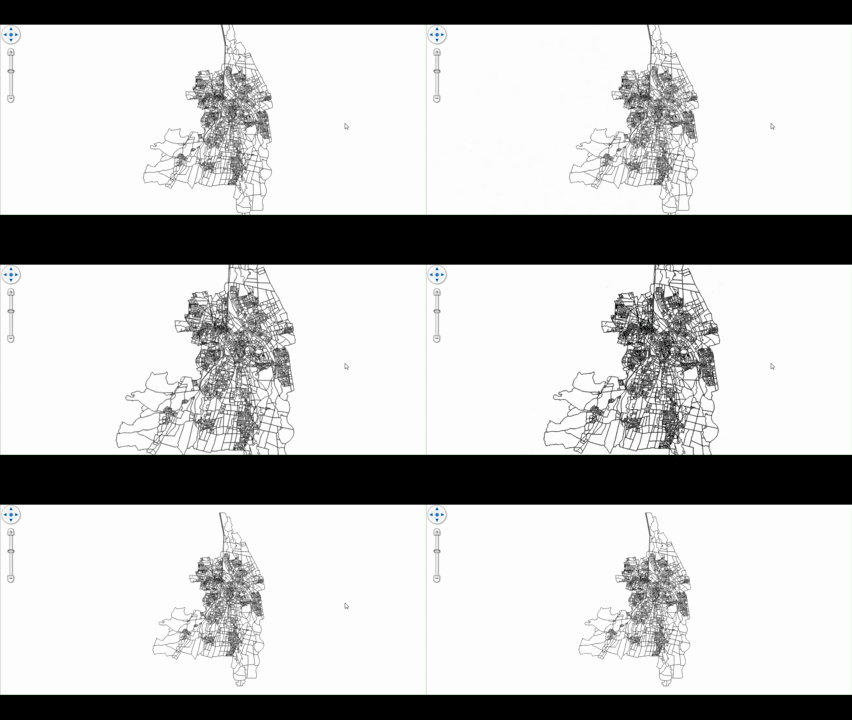
Hi Team, is there a way to enable a smooth zoom holding ctrl? Similar to how google maps does it, except the default there is smooth zoom and holding ctrl enables the “faster” zoom.
Thanks!
Hi Team, is there a way to enable a smooth zoom holding ctrl? Similar to how google maps does it, except the default there is smooth zoom and holding ctrl enables the “faster” zoom.
Thanks!
Hi Julian,
Yes, you can achieve this by customizing the ExtentInteractiveOverlay and adjusting the zoom scale when handling the mouse wheel event.
For example, you can override MouseWheelCore and apply a larger zoom factor only when the Ctrl key is held:
class MyExtentInteractiveOverlay : ExtentInteractiveOverlay
{
    protected override InteractiveResult MouseWheelCore(InteractionArguments interactionArguments)
    {
        var result = base.MouseWheelCore(interactionArguments);

        // Apply faster zoom only when Ctrl is pressed
        if (Keyboard.Modifiers.HasFlag(ModifierKeys.Control))
        {
            if (interactionArguments.MouseWheelDelta <= 0)
            {
                // Zoom out faster
                result.NewCurrentExtent.ScaleUp(100);
            }
            else
            {
                // Zoom in faster
                result.NewCurrentExtent.ScaleDown(50);
            }
        }

        return result;
    }
}

// Assign the custom overlay
MapView.ExtentOverlay = new MyExtentInteractiveOverlay();
With this approach:
You can apply the same pattern to double-click handling if needed.
Thanks,
Ben
Hi Ben, thanks for the snippet, very interesting!
I implemented it differently by overwriting the Map_PreviewMouseWheel event - and calling
await Map.ZoomToAsync(centerPoint, targetScale, Map.RotationAngle, new MapAnimationSettings { Duration = 120 });
with targetScale being calculated as a scale 1.12x bigger than the current scale - smoothing the scroll.
Do you have any idea if there is a benefit switching to the overlay method? We have multiple overlays in our application with their own cache, and they probably would all need to be overwritten otherwise the zoom factor will be off?
Hi Julian,
Nice — that’s a clever way to smooth it out 
That said, I’d still lean toward using ExtentInteractiveOverlay for this kind of behavior.
The main reason is that it stays inside the map’s normal interaction pipeline. In my example, I’m only adjusting the returned NewCurrentExtent , so everything else (rotation, constraints, as well as cancellation, events, etc.) continues to work as designed.
You also don’t need to touch your other overlays. Since you’re modifying the final extent at the interaction level, all overlays will follow that extent automatically — their caches don’t need separate adjustments.
Using PreviewMouseWheel works fine, but you’re essentially taking over the zoom logic yourself. That’s okay if everything is stable, but it’s a bit easier to run into edge cases later compared to staying inside the built-in interaction flow.
If your current implementation is working well, there’s no urgent need to change it — the overlay approach is just a bit more “native” to how the map expects zoom to be handled.
Thanks,
Ben
Oh, I just saw that it’s not a layer overlay but added to the map. That’s smart! I think I like your solution better! Thank you Ben!
Unrelated, have you guys considered making an AI skill to work with thinkgeo, similar to how angular does it?
I’m not sure how Angular uses AI, let us dig in a bit and find out. And of course we are playing with AI internally. For example, if you do “claude mcp add gisserver – npx -y @thinkgeo/gisserver-mcp”, you can add ThinkGeo GisServer MCP to Claude (of course you can use it in other AIs as well) and ask it to build a GIS Server for you. Nothing is official yet, but we will for sure announce some AI assistant by the May Release. Let’s see 
Sweet, then I’m hyped for that!
Just wondering - how would I reverse that - I want it to slow down when pressing ctrl, not speed up. I tried just swapping the ScaleDown and ScaleUp but that shows really weird behaviour where it changes the center point and stops working on ScrollOut.
Also I’ve noticed that with this method,
Map.MapResizeMode = MapResizeMode.PreserveScaleAndCenter; does not seem to be respected?
Just rechecked in the latest beta - shows the same behaviour.
Hi Julian,
I found it’s because in the code I provided earlier, the extra scaling is around the extent center (not the mouse pointer), which
can override the built-in mouse-anchor zoom logic. It is less noticeable during fast zoom, but with slow/reverse zoom it can cause drift and inconsistent behavior.
Use the following code instead, which recalculates the new extent with the mouse position as the zoom anchor:
class MyExtentInteractiveOverlay : ExtentInteractiveOverlay
{
    // Apply only part of the default wheel step when Ctrl is pressed.
    private const double CtrlWheelZoomStepFactor = 0.35;

    protected override InteractiveResult MouseWheelCore(InteractionArguments interactionArguments)
    {
        var result = base.MouseWheelCore(interactionArguments);
        if (!Keyboard.Modifiers.HasFlag(ModifierKeys.Control) || result.NewCurrentExtent == null)
        {
            return result;
        }

        var currentScale = MapUtil.GetScale(
            interactionArguments.CurrentExtent,
            interactionArguments.MapWidth,
            interactionArguments.MapUnit);
        var defaultTargetScale = MapUtil.GetScale(
            result.NewCurrentExtent,
            interactionArguments.MapWidth,
            interactionArguments.MapUnit);

        var slowedTargetScale = currentScale + (defaultTargetScale - currentScale) * CtrlWheelZoomStepFactor;
        if (slowedTargetScale > MapArguments.MaximumScale) slowedTargetScale = MapArguments.MaximumScale;
        if (slowedTargetScale < MapArguments.MinimumScale) slowedTargetScale = MapArguments.MinimumScale;

        var rotatedMousePosition = MapUtil.GetRotatedScreenPoint(
            interactionArguments.ScreenX,
            interactionArguments.ScreenY,
            MapArguments.RotationAngle,
            MapArguments.PivotScreenPoint);

        var deltaX = interactionArguments.MapWidth * .5 - rotatedMousePosition.X;
        var deltaY = rotatedMousePosition.Y - interactionArguments.MapHeight * .5;
        var newResolution = MapUtil.GetResolutionFromScale(slowedTargetScale, interactionArguments.MapUnit);
        var newWorldCenter = MapUtil.ToWorldCoordinate(
            interactionArguments.CurrentExtent,
            rotatedMousePosition.X,
            rotatedMousePosition.Y,
            interactionArguments.MapWidth,
            interactionArguments.MapHeight);

        newWorldCenter.X += deltaX * newResolution;
        newWorldCenter.Y += deltaY * newResolution;

        result.NewCurrentExtent = MapUtil.CalculateExtent(
            new PointShape(newWorldCenter.X, newWorldCenter.Y),
            slowedTargetScale,
            interactionArguments.MapUnit,
            interactionArguments.MapWidth,
            interactionArguments.MapHeight);

        return result;
    }
}
And MapResizeMode.PreserveScaleAndCenter issue will be resolved accordingly.
Thanks,
Ben
Hi Ben, thanks so much for the new snippet!
Sadly, it doesn’t work? The new code zooms into the map center, and not the mouse position.
See attached video:
Hi Julian,
Can you see if this sample works fine on your side?
CustomZoom_03032026.zip (3.6 KB)
Thanks,
Ben
Hi Ben, sorry I was out sick, yes, the sample works fine on my side. I will investigate the difference between the two codebases and update here.
Got it, I still had code overwriting my MouseWheel event, so it broke the custom overlay.
I just have one more issue - the ctrl zoom does not seem to always scroll the same amount depending on the zoom level when zooming in and out?
I start at 1:144448
A normal zoom puts me to 1: 72224 - correct.
A zoom out puts me back to 144448
Holding ctrl and zooming in now puts me to 119169.
Zooming again to 102738
Third zoom to 92058
And fourth zoom to 72477
Zooming out 1: 97667
Zoom out 2: 114040
Zoom out 3: 175239
STRG-Zooming in and out also does not land on the same extent.
I assume this is due to the discrete levels used instead of a liner scale, and this makes jumps non linear and unpredictable.
I solved this by using
 private static double GetCtrlSlowedScale(double currentScale, double defaultTargetScale)
    {
        if (Math.Abs(defaultTargetScale - currentScale) < 1e-9)
        {
            return currentScale;
        }

        var fullStepRatio = defaultTargetScale < currentScale ? 0.5d : 2d;
        return currentScale * Math.Pow(fullStepRatio, CtrlWheelZoomStepFactor);
    }
instead of the previous logic:
var slowedTargetScale = currentScale + (defaultTargetScale - currentScale) * CtrlWheelZoomStepFactor;
Hi Julian,
You are correct that the issue is from using linear interpolation, which is not invertible across snapped zoom levels, so Ctrl zoom-in and Ctrl zoom-out do not round-trip cleanly and can drift.
I updated the sample CustomZoom_03092026.zip (3.2 KB) to use multiplicative (ratio-based) scaling instead, which keeps zoom-in/out behavior consistent and reversible for the slowed Ctrl zoom step.
Thanks!
Ben
Hey, that’s my code! 
Thanks!
Hi Julian,
Yes, that’s your code. I was thinking about putting a complete demo project here so others in the future can just download it and take a look.
Sorry for the confusion, and thanks for sharing your code 
Thanks,
Ben
All good, I just stole the code elsewhere as well I was just surprised that when testing out the new sample project it was the same logic, as I assumed ThinkGeo might have a native way of handling this.
Quick question, would it be possible to add any repository sample to the howdoI repository as a reference? That would also help AI using the repository as context.
Thanks!
Good idea! We’ll make it happen. And yep, we might end up doing all this just to make AI’s job easier someday