ThinkGeo.com    |     Documentation    |     Premium Support

Thin white lines between polygon features

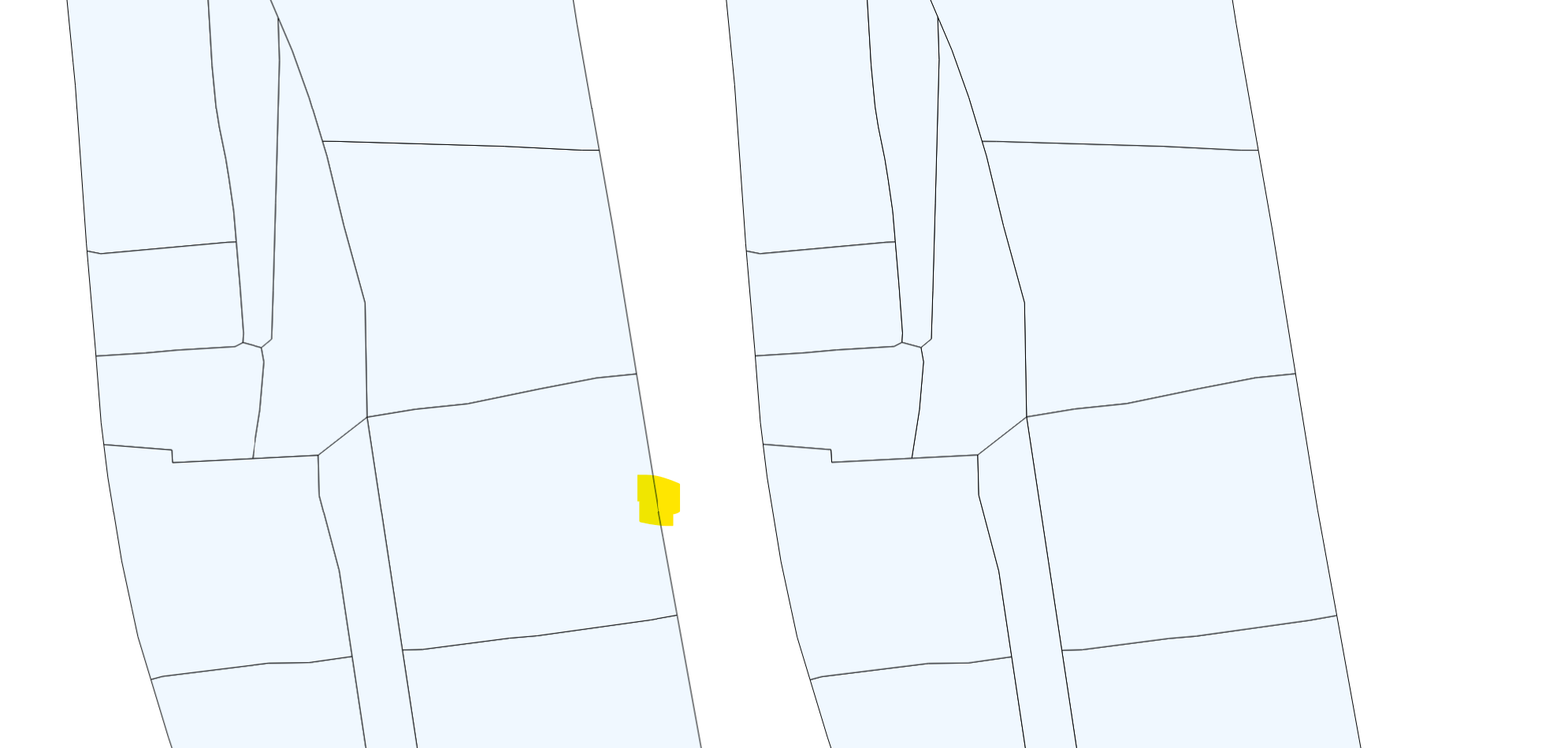
Hi Team, we have noticed that there are white lines between individual polygon features in a geometry when outlines are disabled.

Here it is with Outlines Black, 1px
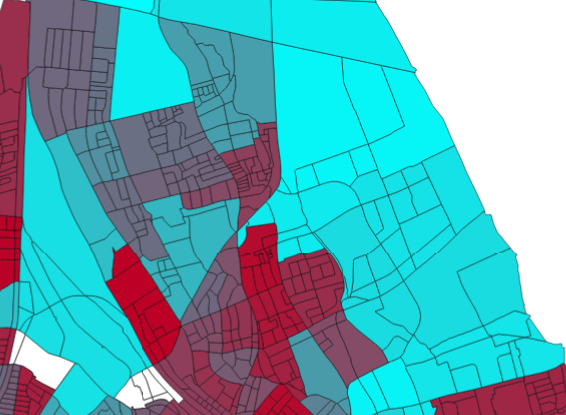
image

Setting Outlines to transparent, Outline width to 0 pixels or anything else makes thin white lines appear:
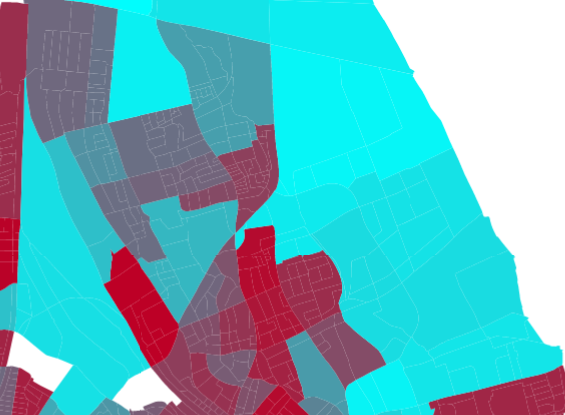
image

Any idea why that might be the case?

Thanks!
J

Hi J, it’s been fixed in the latest beta, can you pull the latest and have another try?

Thanks,
Ben

Hi Ben, works perfectly! Thanks

Any way of enabling anti aliasing on the edges? (I assume that’s what caused this in the first place)?

Be aware that I have taken this frame with both high speed and standard quality and it looks identical (left: standard, right: high speed)
image image

I also tried the deprecated HighQuality - and it it exactly the same image again.

Out of interest I also went back to the previous version and tried a HighQuality picture there, and anti aliasing applies (No AA -> AA)

image image

Hi Julian,

Can you do TileOverlay.RenderingOptions.ImageAntiAlias = true?

We split AntiAlias to ImageAntiAlias/TextAntiAlias/VectorAntiAlias so user can set them separately. “HighQuality” is not accurate because for different kind of maps in fact prefer different settings, and that’s why we got rid of HighQuality and Medium, and kept Standard and HighSpeed. Here we talk a bit more why we made the changes and what the new API you can use. https://docs.thinkgeo.com/products/thinkgeo-core/thinkgeo-raster-sampling-matrix/

Thanks,
Ben

Hi Ben, I’ll look into it - however, your article and the xml comment on Standard Quality say that AA should be on for this Vector Layer? - It is a shapefile, not an image.

I have set all three to true

    RenderingOptions =
    {
        ImageAntiAlias = true,
        VectorAntiAlias = true,
        TextAntiAlias = true,
    }

And I sadly still get the same result with no AA applied.

Can you
1, pull the latest beta122
2, set ReneringOptions.PolygonSeamRenderingMode to SeamWithAntiAlias

Let me know if the issue still exists.

Hi Ben - I did that, the Polygon still does not have any AA applied. Just to clarify, this is the outer edge of the shapefile, not between two features within the file - just because it’s called “seam”.

In that case, can you send me a quick demo to recreate it to make sure we are on the same page?

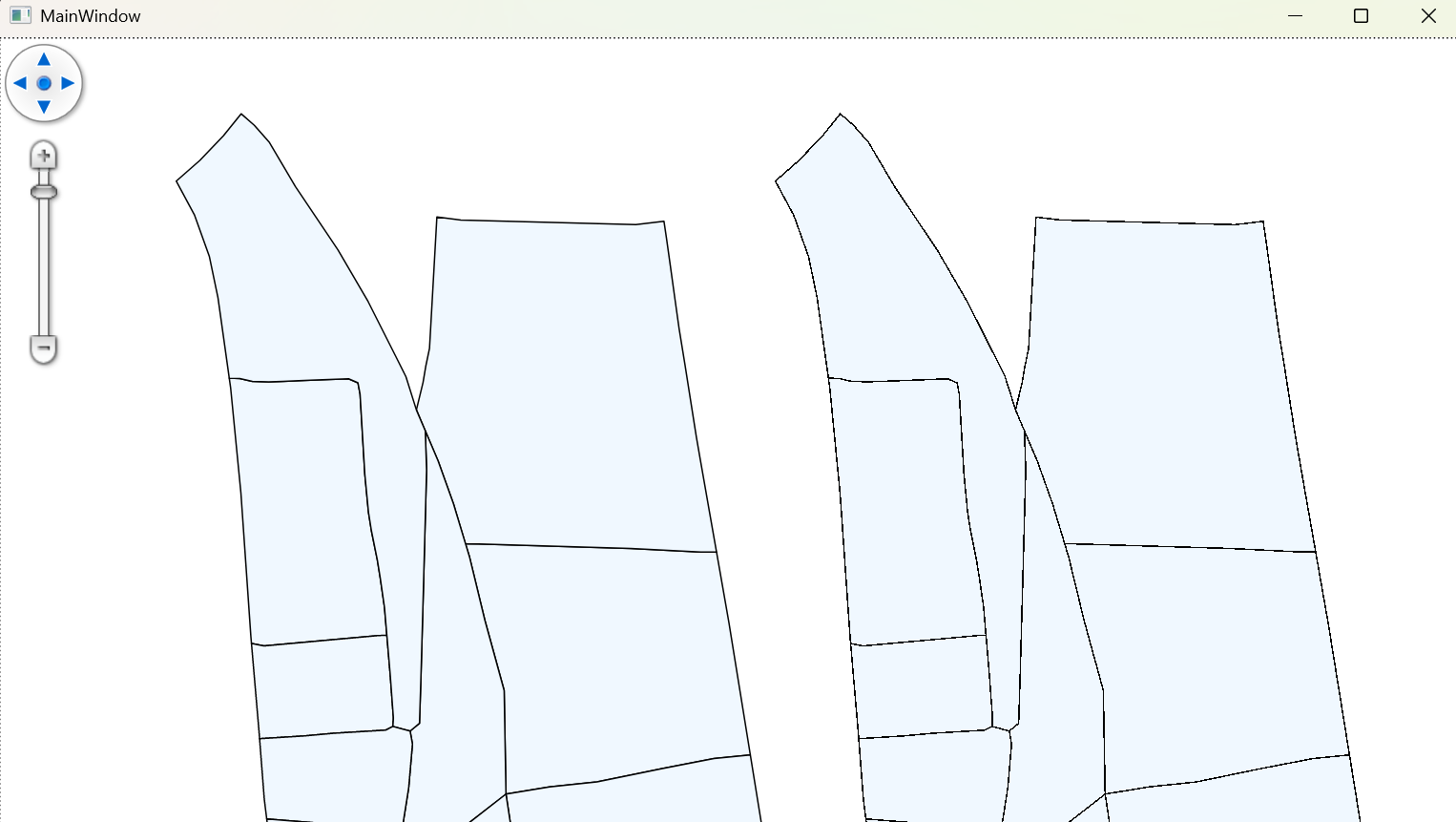
Hi Ben, I managed to reproduce this issue. Please see the attached project. Note the beta version I am at, 14.5.0-beta107.

The left shape has smoothing, the right one (duplicate) does not (Left: Default, Right: HighSpeed). It also seems like there is something weird going on at a specific zoom level. Zoom into the picture to see it clearly.

When updating to the latest beta, the edges look identical, even with all the AA options set to true.

ReproAAIssue.zip (119.7 KB)

Hi Julian, this happens because the layer’s DrawingQuality overrides the overlay’s DrawingQuality .

We’ve updated the source and marked the DrawingQuality on FeatureLayer as obsolete, so it can now only be set on GeoCanvas or TileOverlay .

If you pull the latest beta123 , your existing code should work as expected and look like the following:

1 Like